
The Floor Schedule Phone App is the free mobile companion to Floor Schedule Web. Agents can quickly view the office schedule from their phone and, when PickShift is enabled, manage eligible floor duty shifts. Schedulers can also use PickShift from the app with their scheduler credentials to edit shifts while away from the office.
Download for iPhone | Download for Android
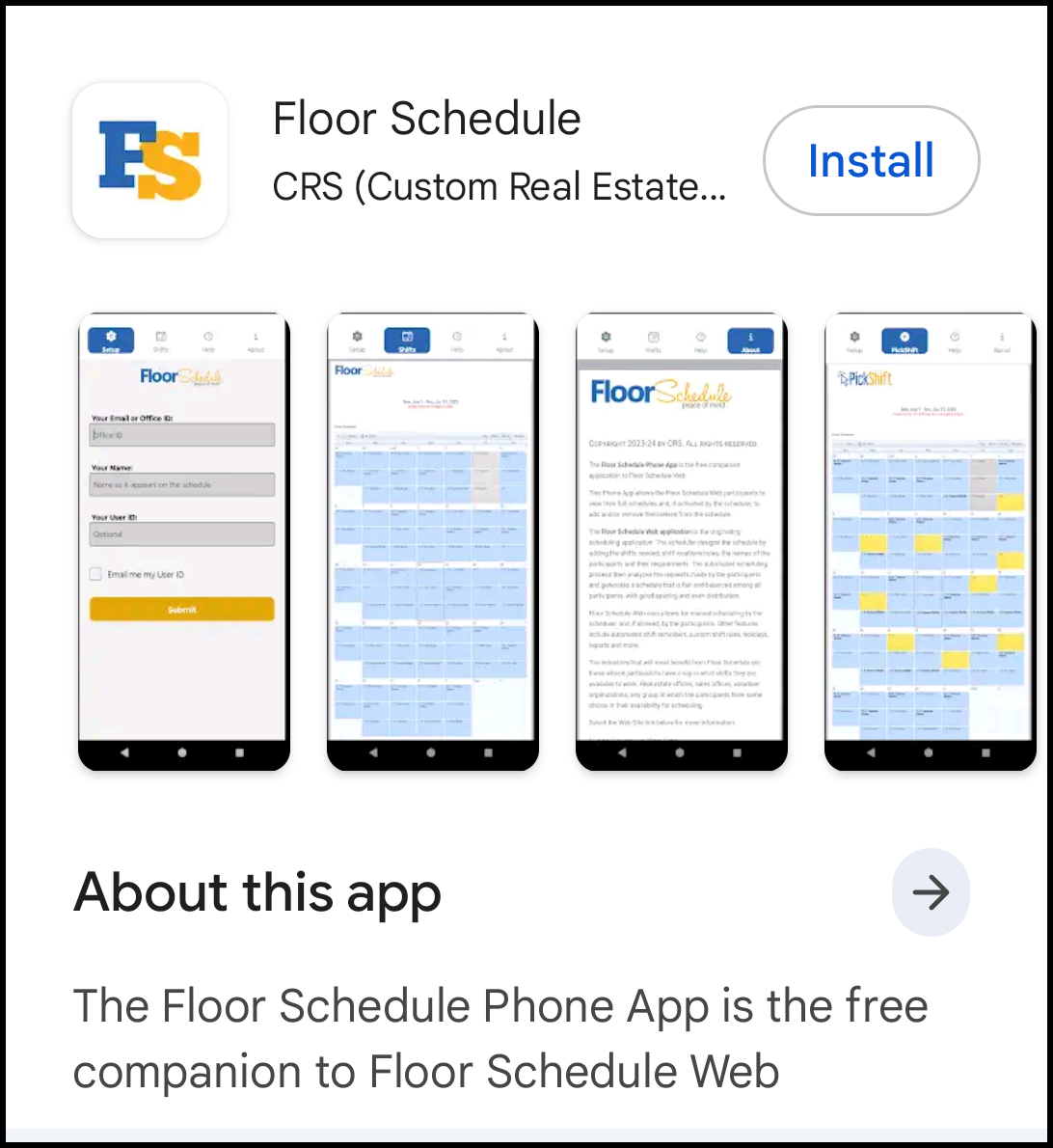
Install the Floor Schedule Phone App to keep your office schedule conveniently available on your phone.
The app is designed to be a lightweight, convenient companion to Floor Schedule Web. The first time you open it, begin with Setup. After the app knows your office, you can view the schedule and, if your office uses PickShift, work with the shifts available to you.
You can spread your fingers to zoom in and pinch to zoom out. Your scheduler determines the range of schedule dates available for viewing and, when PickShift is enabled, for editing.
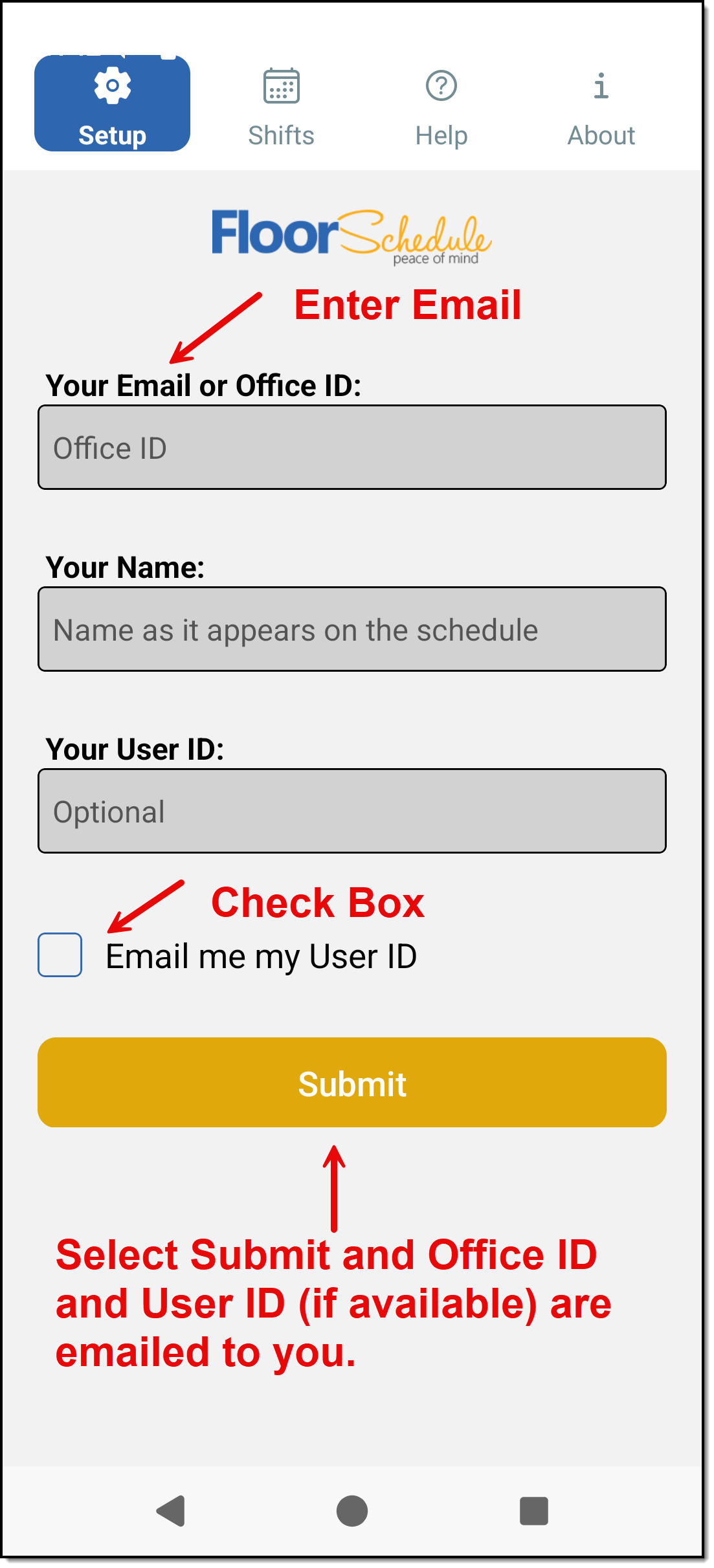
The first time you open the app, start on the Setup screen. Enter your Email or Office ID so the app can locate your office schedule. Your name is optional; when entered as it appears on the schedule, it will highlighted on the schedule for easier viewing.
If your office uses PickShift, enter your User ID. If you do not know it, use the Email me my User ID option.
If you are the scheduler, use your Office ID and your scheduler password instead. These are the same scheduler credentials you use to sign in to myFloorSchedule.com. After setup is complete, the app takes you to the schedule.
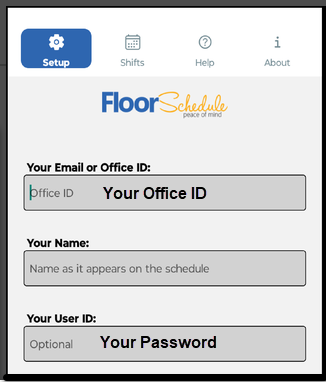
Agents and schedulers use the same app, but their PickShift credentials are different. Agents use their Office ID and User ID. Schedulers use their Office ID and scheduler password — the same scheduler credentials used at myFloorSchedule.com.
Once signed in as the scheduler, PickShift provides scheduler-level access, including the ability to edit any shift and add or remove any agent.
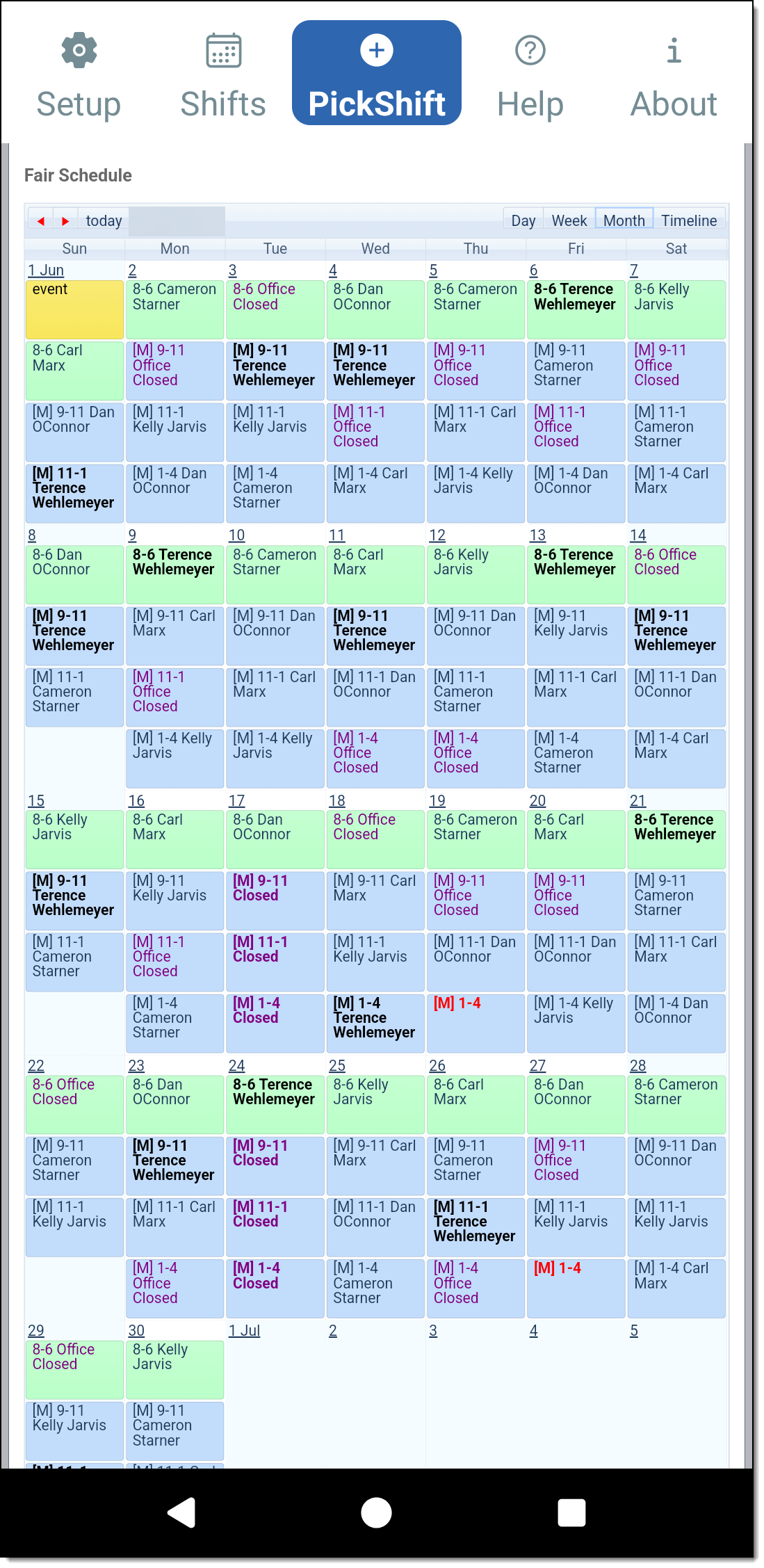
The Shifts screen provides a read-only view of the office schedule. Use it to see shift times, assigned agents, closed shifts and the schedule dates your office has made available.
If changes have been made since you opened the app, return to Setup and then back to Shifts to refresh the schedule. For a larger view and additional options such as printing, use Floor Schedule Web from a desktop browser.
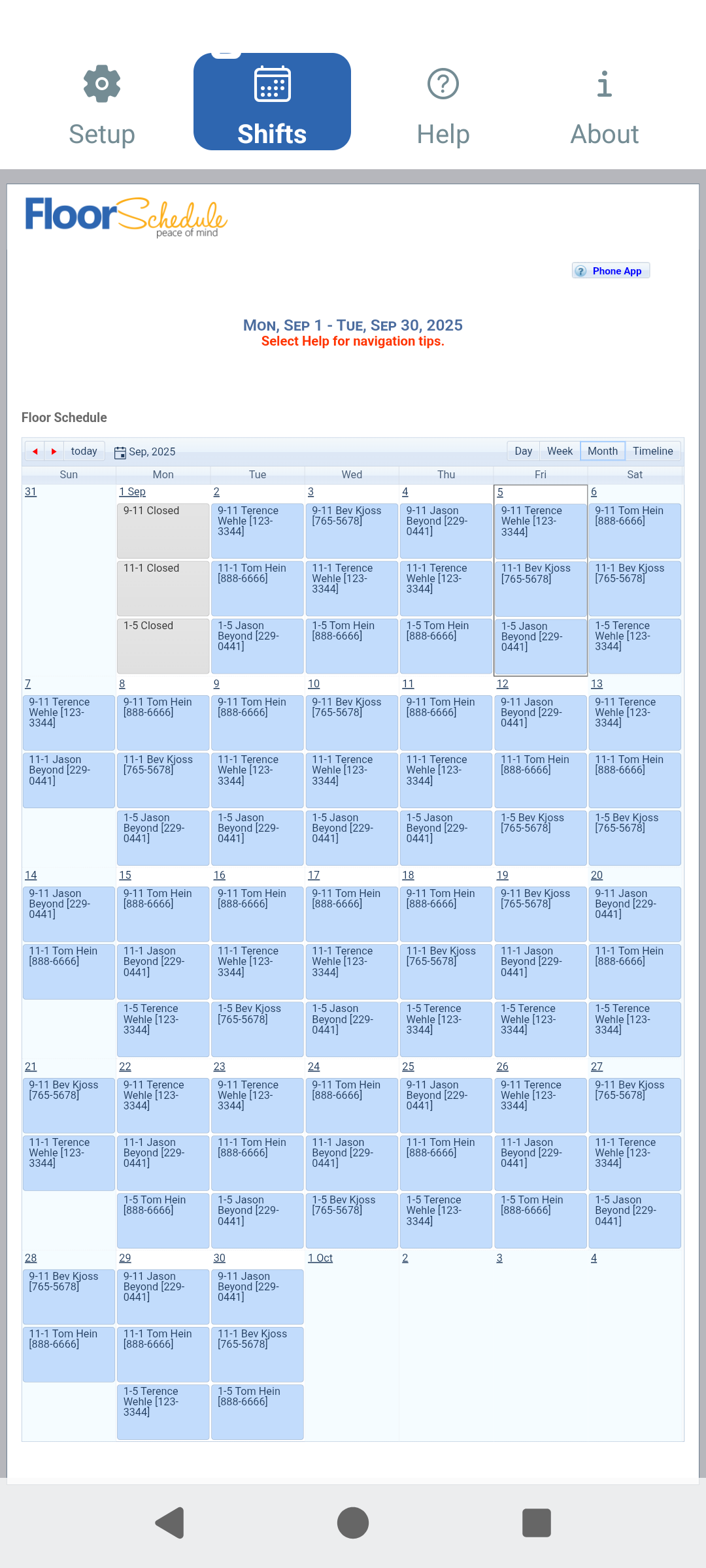
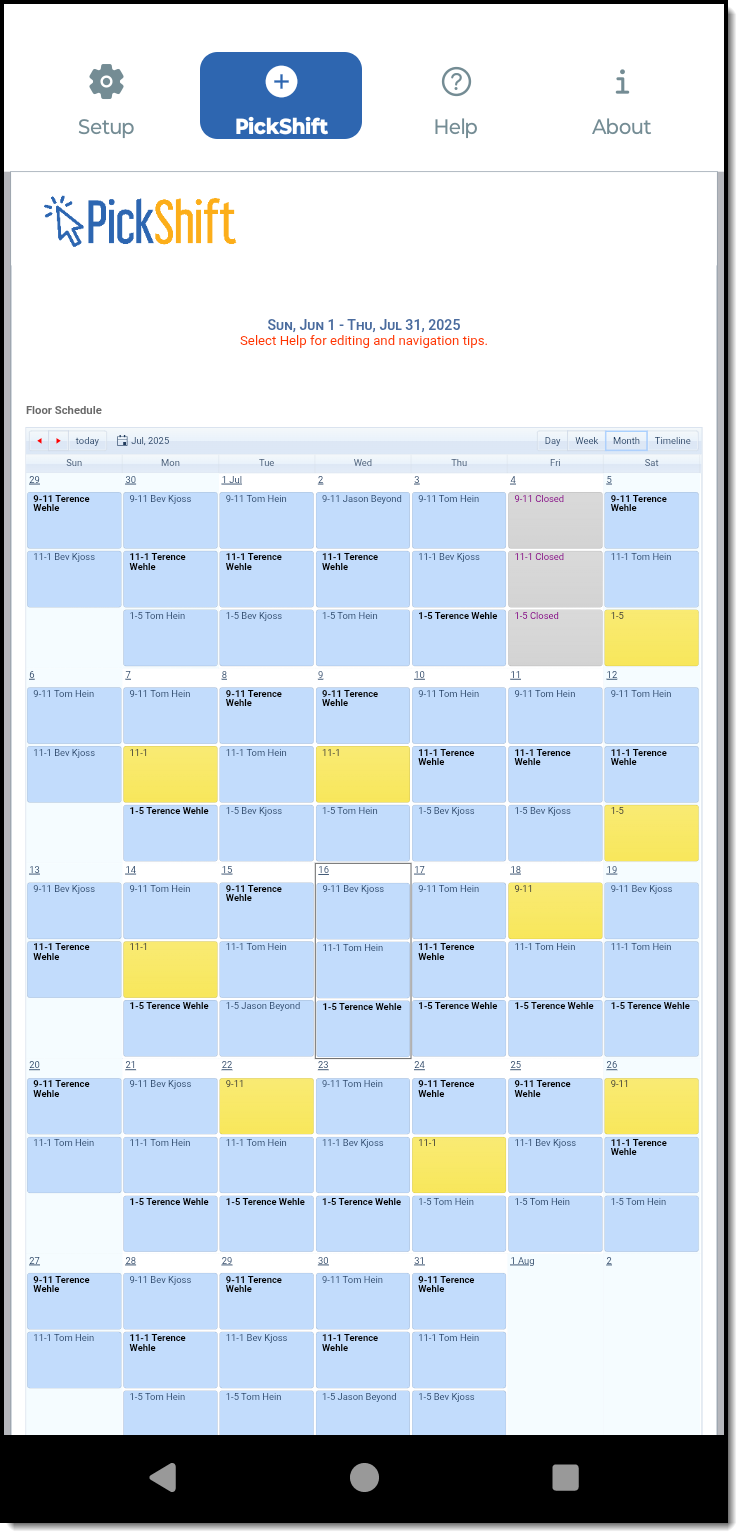
Agents can use PickShift when it has been enabled by the office. They enter their User ID to work with available shifts and manage eligible assignments according to the rules established by the scheduler.
Schedulers can use PickShift anytime — it does not need to be turned on. Simply sign in with your Office ID and scheduler password for full scheduler-level PickShift access.
Schedulers use the same login credentials they use with myFloorSchedule.com. Unlike an agent, a scheduler can edit any shift and add or remove any agent.
On Android, touch and hold a shift to open it for editing. On iPhone, double tap the shift. The exact editing options available depend on whether you are signed in as an agent or scheduler.
When a schedule includes shifts at more than one location, Floor Schedule can use different colors to distinguish locations. Those colors carry through to PickShift on the phone app, making it easier for agents and schedulers to identify where each shift takes place.
This is especially useful for brokerages where one schedule covers more than one office or floor-duty location and agents may be assigned across those locations.
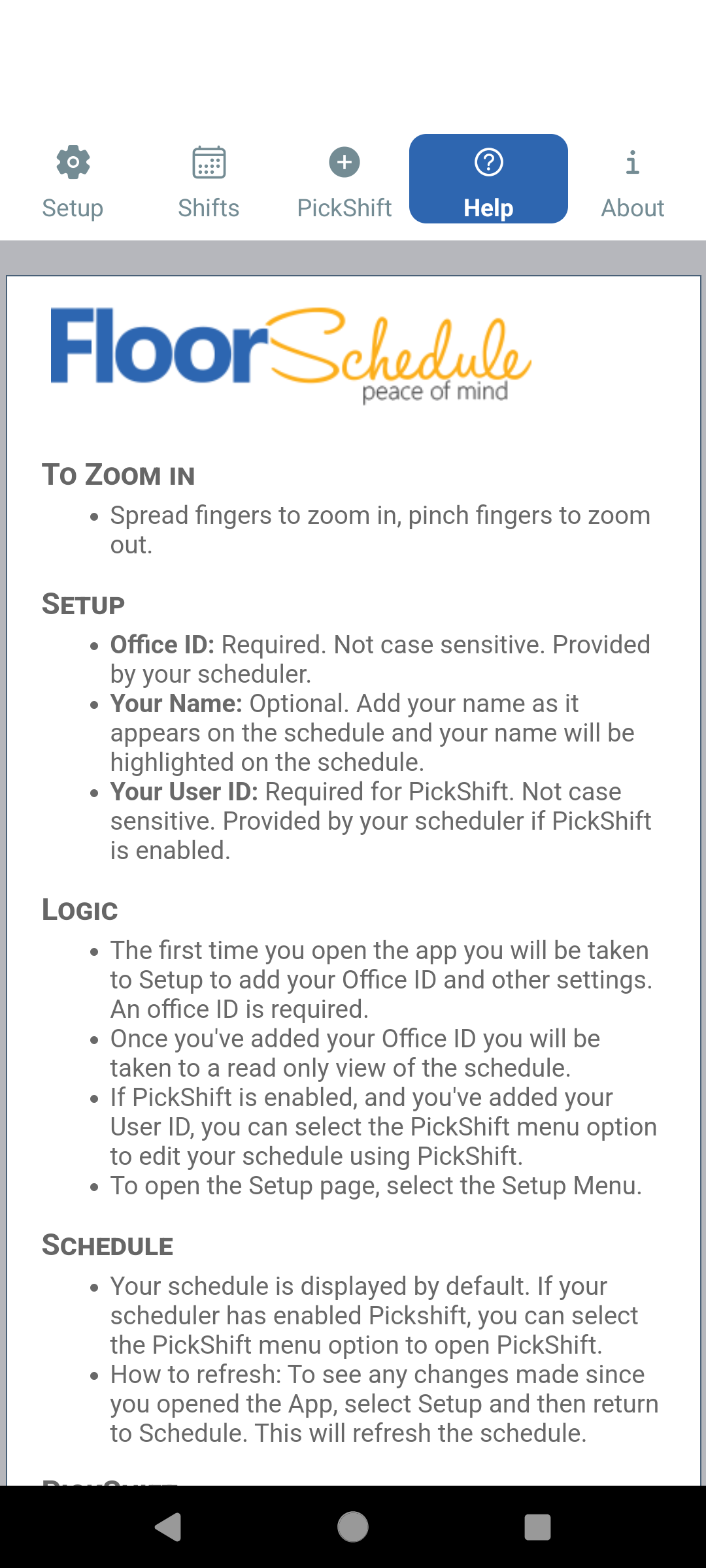
The Help screen provides quick instructions without requiring you to leave the app. It explains setup, zooming, schedule viewing, PickShift operation and common phone gestures.
If a message or edit box does not fit comfortably on the screen, zoom and move the page until the information you need is centered. The phone app is intentionally lightweight, so the full web application remains the best choice when you want the largest schedule view or the broadest set of scheduling tools.
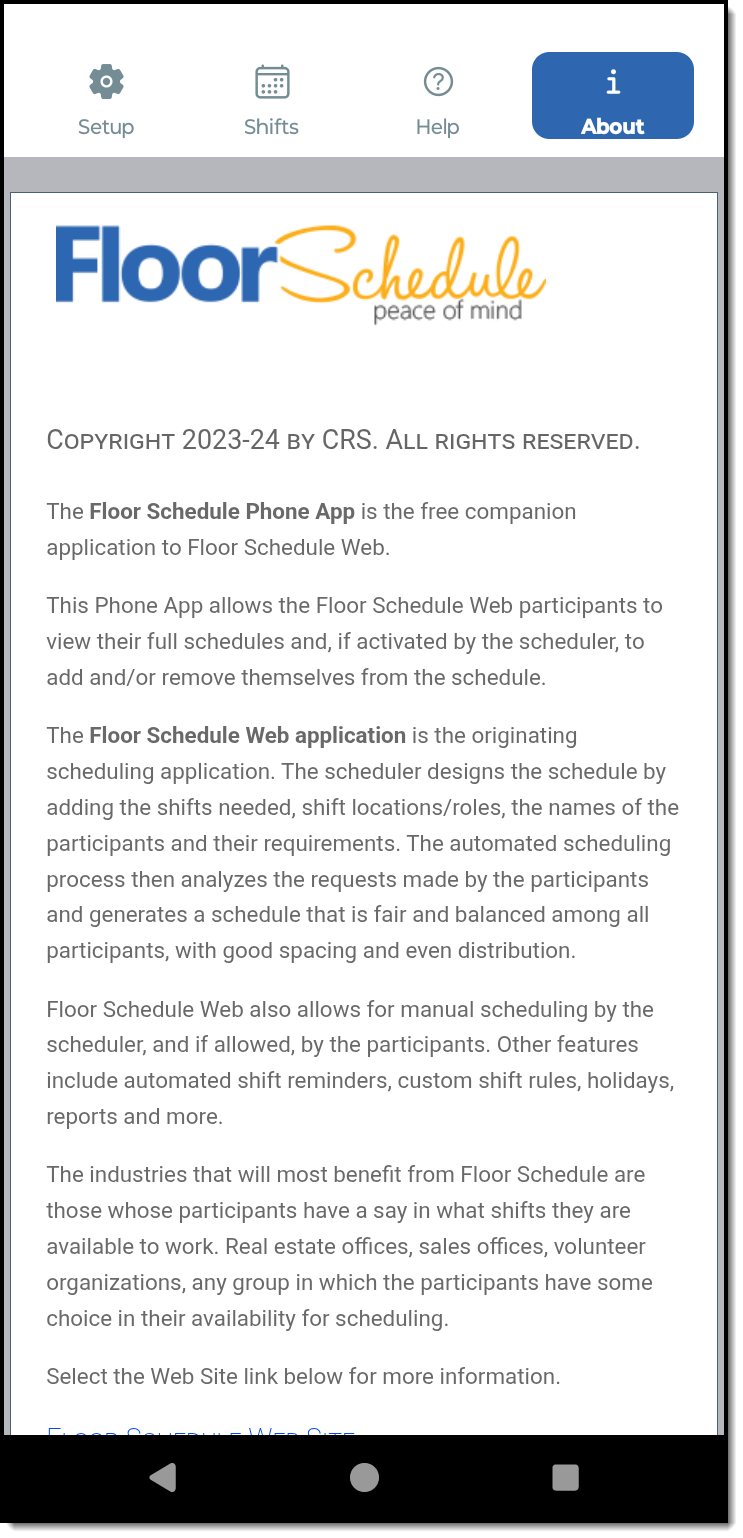
The About screen explains how the phone app fits with Floor Schedule Web. The app gives agents and schedulers convenient mobile access to schedules and PickShift, while the full web application remains the primary scheduling system for setup, automatic schedule generation, reporting and administrative work.
The Floor Schedule Phone App is the free mobile companion to Floor Schedule Web. It provides convenient phone access to office schedules and, when enabled, PickShift.
Yes. The Floor Schedule Phone App is available from both the Apple App Store and Google Play.
Begin by entering your Email or Office ID. Your name is optional. Agents who use PickShift enter their User ID. Schedulers enter their Office ID and scheduler password, using the same scheduler credentials they use at myFloorSchedule.com.
You only need a User ID if your office uses PickShift. If it does, use Email me my User ID on the Setup screen. You do not need a User ID just to view your schedule.
Yes. The Shifts screen provides a convenient mobile view of the schedule dates your office has made available.
Yes, when PickShift is enabled by the office and the agent has entered the required User ID. The agent can work with eligible shifts subject to the office's PickShift rules.
Yes. The scheduler enters the Office ID and scheduler password in the app. These are the same scheduler credentials used at myFloorSchedule.com. Once signed in, the scheduler can use PickShift to edit any shift and add or remove any agent.
No. Agents use their Office ID and User ID. Schedulers use their Office ID and scheduler password, which are the same scheduler credentials used to sign in at myFloorSchedule.com.
When a schedule contains shifts at more than one location, Floor Schedule can display locations in different colors. Those location colors carry through to PickShift on the phone app so users can more easily distinguish where each shift takes place.
On Android, touch and hold the shift. On iPhone, double tap the shift.
Return to Setup and then go back to Shifts or PickShift. This reloads the current schedule information.
No. The app is designed for convenient mobile viewing and PickShift access. For the largest schedule view and broader functions such as schedule setup, automatic generation, reporting and printing, use Floor Schedule Web on a desktop browser.
Use www.myfloorschedule.com/view.aspx. To use PickShift from a desktop browser, go to www.PickShift.com.

